Technology
iGram Telegram: Features, Safety and the Update Risk

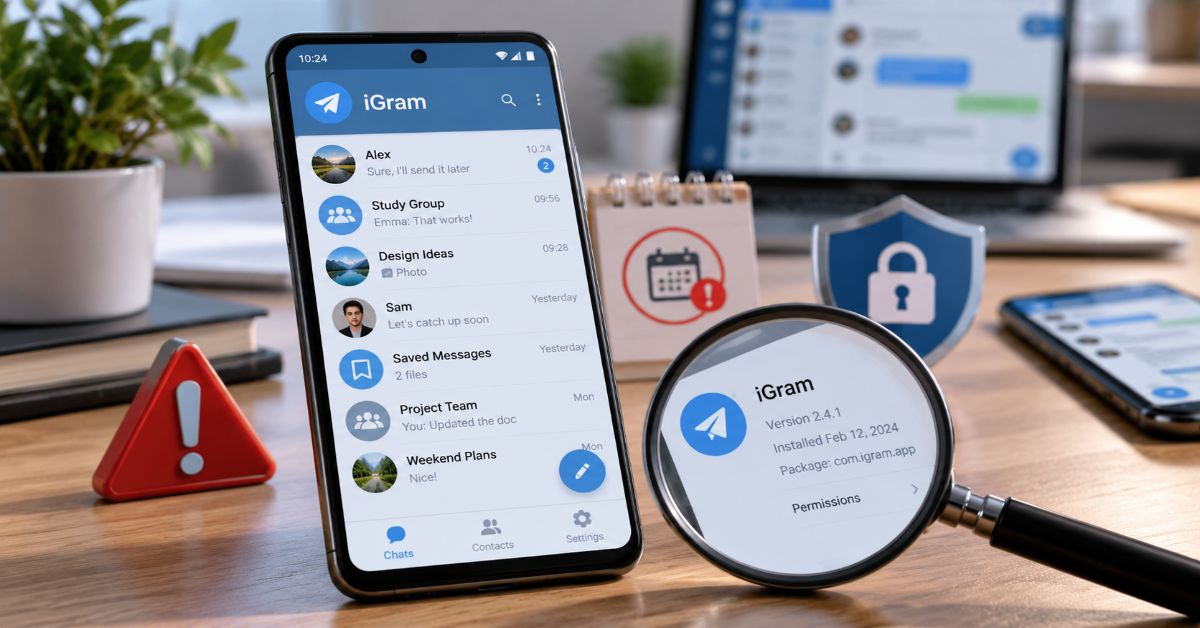
iGram Telegram is associated with an unofficial Telegram client, but the striking finding in 2026 is not an exciting new feature: prominent historical listings show an app that has been absent from Google Play for years. Searching “igram” can also lead to an unrelated Instagram-downloader service, so the name alone does not identify a trustworthy app or download.
That distinction changes the right questions. A third-party Telegram interface can offer different chat controls while still using Telegram infrastructure. Yet the application running on an Android phone can read what the user sees, store local material, handle credentials and request permissions. Connection to Telegram servers does not remove the need to trust the client itself.
Archived information is fragmented. AppBrain describes an app by Farasa; a separate GitHub repository identifies an iGram-branded Telegram API project by Nujen Co. These should not automatically be assumed to be the same maintained product. An AlternativeTo entry marks IGram discontinued. None of these records proves that every package currently circulating with the name is malicious. They do show why a blanket recommendation to install “the latest iGram APK” would be irresponsible.
The useful approach is to separate confirmed Telegram mechanics, historical product claims and unanswered questions. This guide does that, then offers a practical way to inspect an existing installation, decide whether the extra interface is worth it, and move back to official Telegram without overlooking device-specific conversations.
Which iGram are people searching for?
The Telegram client versus the Instagram downloader
The name “iGram” is ambiguous. This article concerns Telegram-based messaging applications described in older Android directories, not a tool used to download Instagram media. A URL containing a familiar spelling is not evidence of an official developer relationship. Check the exact Android package name, signing certificate, publisher and release history before treating a listing as the same application.
What the archived records actually show
AppBrain lists “Igram” by Farasa, version 4.6.0, with a reported last update of February 19, 2018 and removal from Google Play on February 13, 2019. AlternativeTo lists IGram as discontinued. A separate iGramApp GitHub repository describes an unofficial Telegram API client but has a very small visible commit history. These records are clues about historical products, not a current security audit or a reliable source for a new APK.
| Evidence | What it supports | What it cannot prove |
| AppBrain archived listing | A historical Android package and store-removal timeline | Whether a different current APK is safe |
| AlternativeTo discontinued flag | A directory’s discontinuation assessment | The status of every app named iGram |
| iGramApp public repository | An iGram-branded Telegram API project existed | That a downloaded binary matches the source |
| Telegram official documentation | How sessions, cloud chats and Secret Chats operate | How any unverified third-party client implements them |
The features that make an alternative client appealing
Older unofficial Telegram clients competed on interface friction rather than a separate messaging network. Some of the following controls are associated with third-party Telegram software broadly; their availability in a specific iGram package must be checked in that version rather than assumed.
Chat categories and folders
Separating personal chats from channels, groups and bots can reduce noise for people following dozens of communities. Official Telegram also supports chat folders, so a third-party option deserves consideration only if its filtering, shortcuts or layout actually improve the daily workflow. A distinctive tab design is a convenience feature, not a security benefit.
Ghost mode and online-status controls
Apps sometimes promote “ghost” features that suppress read receipts, typing activity or online indicators. These behaviors depend on the specific implementation and Telegram server behavior; they are not proof of anonymity. A client cannot guarantee that an activity signal is hidden in every interaction. More importantly, suppressing a read receipt does not end-to-end encrypt an ordinary cloud chat.
Forwarding, captions and download controls
Advanced forwarding can help channel administrators rewrite captions or organize content. However, removing attribution may create ethical or copyright problems; permission to copy content does not automatically follow from an available button. Download queues or cache options can reduce confusion on constrained connections, but storage growth and background battery use still need device-level measurement.
Themes, contact alerts and interface customization
Color schemes, text size and icons may make an app easier to navigate. Contact-change alerts can help administrators notice account changes, though profile updates do not by themselves indicate compromise. Each additional function may also add permissions, notifications and background tasks. Assess utility against that added surface rather than counting features.
iGram vs. official Telegram: what actually changes
The meaningful comparison is between a current official build and a specific third-party package whose provenance is known. Product names alone are too imprecise for a sound security comparison.
| Dimension | Official Telegram | Historical iGram-style client |
| Developer accountability | Telegram-operated release channels and published client source | Third-party identity and release practices require separate verification |
| Core network | Telegram infrastructure | Claimed Telegram API integration |
| Messaging availability | Current supported app builds | May lag or fail if maintained poorly |
| Privacy controls | Published platform controls and Secret Chats | Extra UI controls may vary by version |
| Updates | Official ongoing distribution | Historical iGram listings indicate aging or discontinued builds |
| Best fit | Most users prioritizing reliability | Only informed users with a verifiable, maintained build |
The trust model: Telegram servers do not secure every client
Cloud chats and Secret Chats are not interchangeable
Telegram says Cloud Chats are encrypted between client and server and stored encrypted in its cloud infrastructure. Secret Chats instead use end-to-end encryption between participants and remain tied to their original devices. This matters because a claim such as “iGram uses Telegram’s API” describes connectivity, not the protection offered by the local code that displays messages.
For the underlying technical distinction, see Telegram’s official privacy policy and its discussion of message storage and Secret Chats.
The extra client becomes an additional place to trust
An unofficial installation can introduce risk through altered code, bundled advertising components, poor update hygiene, broad device permissions or insecure local storage. Those are potential failure modes, not evidence that a particular named package committed them. Source availability is useful but insufficient if users cannot establish that the binary on their phones corresponds to inspected code.
A broader example of why Android software provenance matters appears in our guide to fake apps and Android safety; the subject differs, but the warning about unverified installer files applies equally to messaging tools.
A login is a session, not just an installation
Telegram supports using an account across devices. A sign-in from a third-party app creates a session that should be inspected and terminated when no longer required. Review Settings > Devices (the label may vary by release) and remove unfamiliar sessions. Two-step verification also helps protect future account access, but it does not make an unsafe client safe after login.
Telegram explains session management, account protection and Secret Chats in its official FAQ.
A practical risk assessment before installing
An APK should be treated as a software supply-chain decision. If a listing cannot establish which organization maintains the app, which version is current, and where its signed builds originate, convenience is a weak justification for installing it on a primary account.
| Check | Lower-risk signal | Warning sign |
| Source | Publisher-controlled verified release channel | Random mirror or shortened download link |
| Version | Recent changelog and consistent signing history | Years-old build labelled “latest” |
| Permissions | Only features-relevant access requested | Unexplained contacts, SMS or accessibility access |
| Security | Visible maintenance and response to reports | No contact point or update record |
| Account | Sessions can be reviewed and revoked | Unexpected sessions or new channel subscriptions |
Avoid unofficial clients entirely for sensitive investigations, account recovery, confidential work or situations in which exposure of a conversation could seriously harm someone. An official app is not a magic guarantee either: device compromise, phishing and poor account settings remain possible.
If unfamiliar apps or domains are involved, our Android and browser risk checklist offers related advice on avoiding misleading download prompts. It is a general safety resource, not a review of iGram.
Can you run the two apps at the same time?
Telegram’s multi-device account model allows multiple authorized sessions, including simultaneous devices. Whether one specific historical iGram package can coexist with a current official installation on a particular Android device depends on package identifiers and compatibility. Do not assume either app replaces or signs out the other. Confirm what is installed, check the active-session list and avoid testing a doubtful build with your primary account.
Performance, battery and media: claims need measurements
“Fastest” and “lightest” appear in older directory descriptions, not in an independently verified 2026 comparison. A fair benchmark would use the same device, network, account state and media cache, then measure cold-start latency, time to load a large chat, RAM use, background battery draw and storage after repeated downloads. A build from 2018 should not be assumed competitive with current Android releases.
When a feature claims to save bandwidth, separate lower network transfer from lower battery use. Aggressive downloading may shorten waits but increase storage and radio activity. A visually simpler interface can still run more background services. Without measured results, any precise speed, RAM or battery claim would be speculation.
How to switch safely to official Telegram
Preserve what will not follow the account
Before logging out, identify local-only media and any Secret Chats. Telegram states that Secret Chats are device-specific and are lost from that client when users log out. Save permitted important information appropriately and tell other participants if a fresh Secret Chat will be needed. Cloud Chats generally reappear after signing in to the same account.
Move the session deliberately
- Find the official Telegram app through Telegram’s published download channels or your device’s trusted app store.
- Sign in with the same account and confirm cloud chats and important contacts appear.
- Review Telegram Settings > Devices and terminate the old iGram session after confirming the new installation works.
- Enable or review two-step verification and check your recovery email settings.
- Uninstall the old client, then review Android app permissions, downloaded files and remaining local media.
If the phone behaves unexpectedly after removal, update Android, inspect recently installed applications and use the device’s security scanning tools. A new install does not erase files already exported outside Telegram.
Common problems and responsible fixes
Login codes and session confusion
Check whether Telegram delivers a sign-in code to an already authorized device before assuming SMS is missing. Never paste login codes into a download page or send them to someone claiming to provide unofficial app support. Check for unauthorized sessions if new sign-ins appear unexpectedly.
Missing notifications and media
Battery optimization, notification permissions, storage limits and network restrictions can disrupt messaging even when the server connection works. Test those controls on a maintained official build first; troubleshooting a long-abandoned APK may hide problems that no settings change can fix.
Theme problems and missing features
An old client may not understand current UI behavior or newly introduced platform functionality. If a feature is absent, do not infer that another website’s screenshot describes the package in hand. Device version, app build and developer identity all matter.
The Future of iGram and Third-Party Telegram Clients in 2027
For 2027, the central dividing line is likely to remain maintenance rather than a single novelty feature. Telegram continues to document its client APIs and Secret Chat protocol, while Android platform changes place continual demands on app compatibility and permissions. A client that cannot demonstrate ongoing support faces accumulating problems: broken notifications, changing API expectations and unresolved vulnerabilities.
There is a plausible role for responsibly maintained alternative clients: accessible interfaces, specialized chat organization and transparent source builds can serve users poorly supported by mainstream defaults. But that future should not be projected onto a discontinued listing. A historical IGram brand would need a clearly identified maintainer, reproducible or auditable releases, timely updates and accountable security reporting before being evaluated as an active option.
This is a forecast based on current software-maintenance realities, not evidence of a confirmed iGram revival or a planned 2027 release. Users should judge whichever exact package is offered then, not rely on a recognizable product name.
The difference between an interface layer and the wider technology stack also appears in our OpenClaw messaging integrations explainer; integrations bring convenience while shifting responsibility across components.
Key Takeaways
- “iGram” is an ambiguous name: establish the exact publisher and Android package before downloading anything.
- Old iGram listings provide evidence of past availability, not proof of active maintenance today.
- An API-based Telegram client still requires independent trust in its local software and distribution chain.
- Ghost or forwarding features are convenience controls; they should not be confused with end-to-end encryption.
- Official Telegram is the sensible default when update reliability and vendor accountability matter.
- Before abandoning an old session, account for Secret Chats and other device-specific data.
Conclusion
The strongest reason to reconsider iGram in 2026 is not an accusation of malware. It is the absence of a clearly established, maintained product identity across the historical records most people will encounter. An unofficial messaging client may offer real improvements in navigation or content management, but its benefits are meaningful only when the specific software can be verified.
For readers with an old installation, the immediate priority is practical: inspect Telegram sessions, preserve anything stored only on the device and decide whether the extra controls justify continued exposure. For readers considering a download, a recognizable app name and a list of attractive features are not enough. Look for current release provenance, transparent maintenance and a distribution source that can be authenticated.
Telegram’s own cloud and Secret Chat designs remain relevant whichever interface is used. The extra question is who controls the code in the phone. Until a particular iGram build can answer that clearly, official Telegram is the more defensible default.
Frequently Asked Questions
Is iGram Telegram the same as Telegram?
No. The iGram name appears in historical listings for third-party clients that use Telegram infrastructure. It is not the official Telegram application, and similarly named products may not share a developer.
Is the iGram app safe to use in 2026?
No available historical directory listing establishes the safety of a currently downloadable APK. Some listings mark IGram discontinued. Assess the exact developer, build and source; avoid trusting old mirror files merely because their names match.
Does iGram have end-to-end encrypted chats?
Telegram supports end-to-end encryption in Secret Chats, but that does not prove every unofficial client correctly implements or supports them. Ordinary Telegram Cloud Chats are not end-to-end encrypted.
Can I use iGram and official Telegram together?
Telegram allows multiple account sessions. Whether two Android applications coexist depends on their packages and device compatibility. Use Telegram’s Devices settings to see and terminate active sessions.
Will deleting iGram delete my Telegram messages?
Telegram cloud messages generally remain associated with the account, but device-specific Secret Chats can be lost when logging out. Preserve necessary local information before removing a client.
Is igram.io the official site for the Telegram client?
Do not assume so. Similar iGram branding is used for an Instagram-related downloading service. Verify exact product identity and developer ownership rather than relying on a familiar domain spelling.
Methodology
Research checked Telegram’s published FAQ, privacy policy and Secret Chat documentation against historical third-party app listings and a public iGram-branded code repository, accessed October 22, 2026. These sources support the difference between cloud and Secret Chats and document historical app listings. They do not amount to live testing, malware analysis or confirmation of the provenance of current APK mirrors. No firsthand performance measurements were supplied. Feature descriptions attributed broadly to unofficial clients have not been certified for a particular iGram version.
References
Telegram. (n.d.). Telegram FAQ.
Telegram. (n.d.). Telegram privacy policy.
Telegram. (n.d.). End-to-end encryption, Secret Chats.
AppBrain. (n.d.). Igram for Android: Statistics and app history.
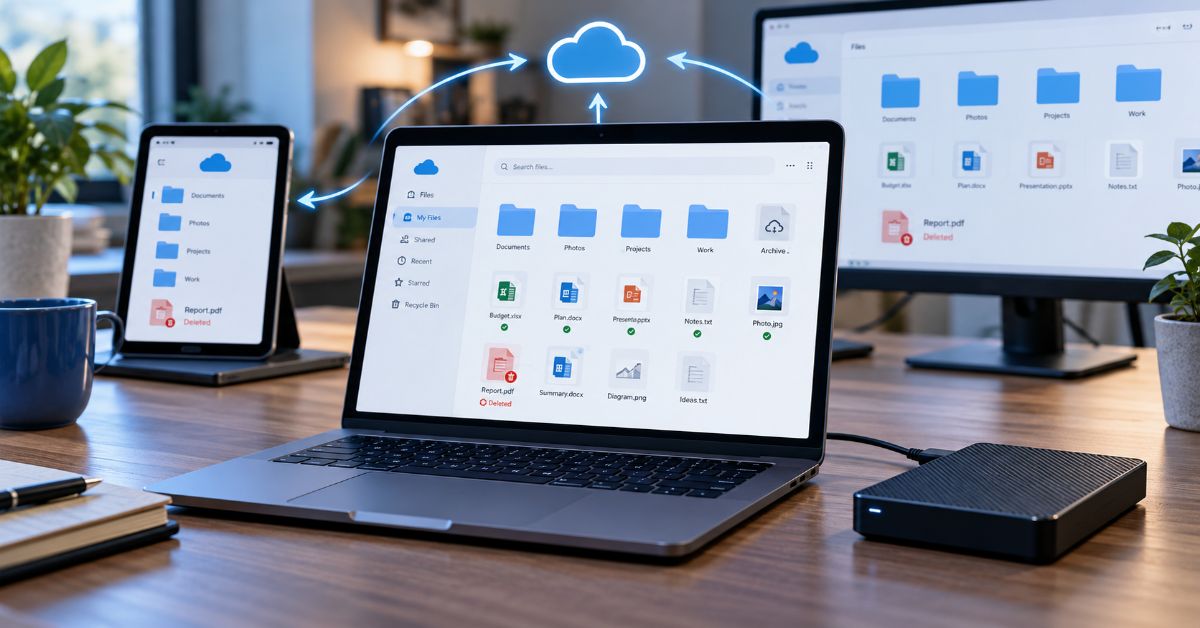
OneDrive makes files available across devices, but that convenience is exactly why it cannot serve as the only backup: a deletion or damaged file can synchronize to the cloud before anyone notices. If the recovery window closes, having seen the document in File Explorer is not proof that a recoverable copy remains. The useful question is not “is my folder in the cloud?” It is “what separate copy could I restore after a bad change has spread?”
Consider a small business editing invoices on a laptop and a desktop. A staff member accidentally deletes a synced folder. Microsoft documents that local deletions can be synchronized to the cloud and then to other connected devices. That is working-as-designed synchronization, not evidence that a secure historical backup exists (Microsoft, n.d.-a).
The same logic applies to ransomware and account compromise, although the recovery path differs. An infected machine may encrypt local files that then synchronize; an intruder with account access may delete cloud files outright. Version history, the Recycle Bin and subscription-based file restore can help, but they are conditional recovery capabilities, not permanent, isolated archives.
This distinction matters more than a feature checklist. The decision should start with the particular loss a reader wants to survive: a broken laptop, a wrong edit, a deleted folder, a locked account or a major security incident. Each asks a different question of the storage system.
Sync, Cloud Storage and Backup Solve Different Problems
Sync aims to maintain a consistent current state across endpoints. Cloud storage keeps files on remote infrastructure and makes them accessible after a device failure. Backup preserves independent recovery points, ideally outside the systems that can modify the working files. A service can offer features from all three categories without providing complete system protection.
The key operational difference is the fate of a bad change. Sync usually distributes it. Version history may roll it back. An independent backup should still allow recovery if the cloud account, deletion history or subscription is unavailable.
| Capability | Synced OneDrive files | Independent backup |
| Access on another device | Usually yes after upload completes | Possible, but recovery may require restore |
| Deletion propagation | Can synchronize deletion | Historical restore points can survive |
| Operating system and installed apps | Not a full system image | Possible with appropriate backup software |
| If cloud account is locked | Access may be unavailable | Separate destination may remain accessible |
Five File-Loss Scenarios and Their Real Recovery Paths
A laptop dies but the uploaded files remain
This is where cloud sync shines. If the required files uploaded successfully before the laptop failed, the reader can sign in on a new device and retrieve them. Unsynced folders, local application data and system settings are a different matter. A healthy sync icon is useful evidence, but a check in the web interface is better: the document must actually be present and openable there.
A spreadsheet was overwritten yesterday
Version history is the first place to look. In the web interface, select the file, open Version history, inspect the available revisions and restore the correct one. Microsoft says version history works across file types, although retention and administration can vary. Restoring an older revision changes which version is current; inspect before choosing (Microsoft, n.d.-b).
An entire project folder was deleted
The web Recycle Bin is the first cloud recovery point. Personal-account files are typically recoverable for 30 days, while work or school items are normally retained for up to 93 days, subject to administrator changes. Permanently deleted items cannot be recovered through the ordinary OneDrive Recycle Bin. Check the PC Recycle Bin too, but online-only deletions may appear only in the cloud bin (Microsoft, n.d.-c).
Ransomware changed hundreds of documents
Stop synchronization and isolate the infected machine following incident-response guidance before performing large restores. Eligible Microsoft 365 subscribers can use Restore your OneDrive to reverse cloud file actions from the prior 30 days. The feature is not available to every free user and does not substitute for cleaning an infected endpoint. A recovery can also affect later file changes, so review its activity timeline before proceeding.
The account is locked or an attacker emptied the bin
Cloud-based self-service recovery may no longer be sufficient. A disconnected external backup or a separate backup service with independent credentials becomes the recovery path. This is also why multifactor authentication and careful sharing are useful but should not be confused with backup: prevention reduces some risks while independent copies limit their impact.
Choose Recovery Tools by What Actually Went Wrong
The following decision table avoids a common mistake: using a full-library restore when only one file needs an earlier version.
| Symptom | First recovery route | Important limitation |
| One file has wrong edits | Version history | Available revisions and policies vary |
| File or folder deleted | OneDrive web Recycle Bin | Time-limited; permanent deletion may be final |
| Many files corrupted | Restore your OneDrive if eligible | Microsoft 365 feature; 30-day window |
| Folder never uploaded | Search local storage / separate backup | Cloud cannot restore a file it never received |
| Whole PC must be rebuilt | System-image or endpoint backup | OneDrive does not reinstall the OS and apps |
| Cloud account inaccessible | Offline or independent backup | Do not rely on same cloud login |
For access-control problems, recovery is often tied to identity. The site’s Entra admin center guide offers useful context on Microsoft identity administration, while this article stays focused on what individual file owners can restore.
A Safer Setup in One Afternoon
Check exactly which folders are synchronized
Open OneDrive settings and review the folders covered by PC folder backup. Desktop, Documents and Pictures may be included depending on configuration; other places such as custom work directories, external disks or application databases should never be assumed covered. Open the website and sample several recent critical files to confirm upload.
A second issue is ownership. Items shared from another person’s account are not necessarily part of the recipient’s own OneDrive recovery scope. Microsoft explicitly warns that its self-service recovery may not restore someone else’s shared files. Projects with multiple owners need an agreed owner and recovery procedure, not merely a shared link.
Use Files On-Demand without confusing space saving with protection
Files On-Demand can show online-only files in File Explorer without keeping complete local copies. “Free up space” removes the locally downloaded contents; it does not delete the cloud file. By contrast, deleting the file itself from the synced folder can remove the cloud copy. That tiny wording difference has expensive consequences on low-storage laptops.
Keep critical documents available offline where practical, but remember that an offline copy synchronized later may still transmit unwanted changes. Independence comes from a separate backup that does not automatically mirror every edit or deletion.
Add an independent recovery destination
A simple 3-2-1-style plan keeps working files in the cloud, periodic backups on an external drive or NAS, and an additional copy in separate storage, ideally with one copy offline or immutable. The traditional 3-2-1 wording means three copies, two media types and one off-site copy; the practical goal is to avoid one account or one bad command affecting every copy.
For a freelancer, a weekly external backup may be enough for replaceable drafts but not for active client deliverables. For a company that changes transaction records throughout the day, the recovery-point objective needs to be much tighter. Choose schedule and retention from acceptable data loss, not from the default interval shown in a product.
Readers protecting shared business devices can extend this with the site’s computer virus prevention guide, which focuses on practical infection prevention and restore checks.
Protect the login and audit sharing
Enable a strong multifactor sign-in method, remove obsolete shared links, review access after contractor departures and keep recovery contact methods current. A separate backup should use credentials and permissions that ordinary collaborators cannot delete. For the identity basics behind this, the site’s two-factor authentication explainer gives a useful companion explanation.
Prove the restore actually works
Once every quarter, choose a document, restore an older revision or backup copy to a new location, open it, and record how long recovery took. Do not overwrite the production original during a drill. For teams, also simulate a missing employee and verify that an authorized replacement can access recovery credentials and storage.
A backup with no successful restore test is only a claim. The drill exposes missing folders, expired credentials, corrupted archives, inaccessible devices and recovery times that exceed what the business can tolerate.
The Hidden Risk: Your Recovery Clock Starts Before You Notice
Cloud recovery windows are expressed from the event, not from when the owner discovers it. A missing folder noticed after a long holiday may have far less time left than expected. Versioning rules and work-account retention can differ, and a bulk restore can reverse legitimate edits made after the chosen restore point. These are operational risks, not obscure technical footnotes.
Suppose a mistake is discovered 28 days after deletion in a personal account. If the standard 30-day Recycle Bin window applies, the decision is urgent. A weekly backup with six months of retention might still hold the previous state even when the cloud bin expires. By comparison, a daily mirror that silently deletes removed files offers little historical insurance.
The most useful metric is recovery coverage: the share of important data for which there is a separate, recently tested restore point. Cloud capacity in gigabytes is not a substitute for that metric. A larger paid plan can hold more data while still leaving the backup strategy weak.
The site’s privacy and cloud security case study addresses the broader consequences of credential misuse, a reminder that cloud access security and data recovery are related but separate problems.
What the Microsoft 365 Plan Changes—and What It Does Not
Subscription status changes access to certain bulk-recovery controls, not the fundamental sync design. Microsoft describes Restore your OneDrive as a Microsoft 365 subscriber feature capable of undoing file and folder actions within the prior 30 days. That is valuable after a broad corruption event. It is not equivalent to a complete computer backup, indefinite retention or guaranteed recovery after permanent deletion.
| Setup | Suitable for | Residual weakness |
| OneDrive alone | Convenient access and modest-risk documents | No independent restore point |
| OneDrive + external versioned backup | Personal files, freelancers, home offices | Drive can fail or be stolen; rotate or disconnect |
| OneDrive + external + separate off-site backup | Business-critical or hard-to-recreate work | More cost, configuration and testing |
The “best” tier depends on loss tolerance. A student with replaceable lecture slides may rationally choose a lighter setup than a consultant holding signed contracts. But documents that cannot be recreated deserve an independent copy even when cloud recovery seems generous.
The Future of OneDrive in 2027
The most realistic expectation for 2027 is tighter integration among collaboration, identity checks, cloud storage and recovery workflows, rather than a guarantee that synchronization will become an independent backup. Microsoft already provides granular file history, a cloud Recycle Bin, Files On-Demand and a subscriber-only time-based restore. These features suggest a continuing emphasis on convenient recovery within the Microsoft ecosystem, but Microsoft has not made every possible future retention or licensing change certain.
For users, a larger change may be behavioral: more work is created across several devices, browsers, shared folders and applications. A folder that looks local is often a cloud-backed workspace with multiple actors. This increases the need to distinguish ownership, access rights and historical recovery. A business cannot assume the person who can edit a shared file is also the person who can recover it after the owner account is gone.
A sensible 2027 plan therefore does not depend on speculation about new features. It documents file locations, tests restoration, separates backup credentials and reviews account-specific service terms when they change. The strongest technology roadmap is the one that remains usable after the primary cloud account becomes unavailable.
Key Takeaways
- Treat sync as convenience and continuity, not a substitute for history you control.
- Check the web copy of a file rather than assuming a local status icon proves upload.
- Choose Recycle Bin, version history or bulk restore according to the failure.
- Know that personal and work or school retention periods can differ.
- Keep at least one backup insulated from ordinary sync and sharing permissions.
- Run a small test restore before you need an emergency recovery.
Conclusion
OneDrive is useful because it reduces the friction of moving between computers, sharing work and recovering some recent mistakes. It genuinely improves resilience when a laptop breaks and the needed documents have already reached the cloud. Yet it offers a different kind of safety from an independent backup. In a synced workspace, an accidental deletion or corrupted file can become the new current state everywhere.
The right response is not to abandon cloud storage. It is to define a recovery plan for the failures that matter most. For a home user, that may mean checking selected folders and keeping a rotated external backup. For a team, it means explicit retention, restore responsibilities and credentials that survive a compromised account. Either way, an occasional restore test supplies evidence that promotional feature names cannot.
Keep the cloud copy for speed, collaboration and everyday accessibility. Keep an independently recoverable copy for the day those advantages are no longer enough.
Frequently Asked Questions
Is OneDrive a backup or a sync service?
It is primarily cloud storage and synchronization, with several backup-like recovery features. Those features can restore some recent deleted or overwritten files, but they are not a full independent system or long-term archive.
Does OneDrive back up my entire computer?
No. It does not automatically create a restorable Windows installation, applications or every custom folder. Review the PC folder backup selections and use a separate system backup if full-device recovery matters.
How long are deleted OneDrive files recoverable?
Microsoft lists a typical 30-day period for personal cloud Recycle Bin items and up to 93 days for work or school accounts, unless an administrator changes policy. Permanent deletion and special circumstances can shorten options.
Can OneDrive recover files after ransomware?
Sometimes. Version history and eligible Microsoft 365 bulk restore can reverse certain unwanted changes. Recovery still depends on timing, account access and the specific damage; isolate infected devices and use independent backups when needed.
Does Files On-Demand mean files are saved twice?
No. An online-only item may have no full local content copy. Files On-Demand reduces disk usage; it does not supply an independent historical backup.
Should I use an external drive if I already pay for Microsoft 365?
For irreplaceable work, yes, or another separate backup destination. The subscription improves some recovery options but does not guarantee protection against every deletion, lockout or device-wide loss.
How often should I test file recovery?
Quarterly is a reasonable starting point for many personal or small-office workflows. Higher-risk businesses should test more often and measure whether recovery time and acceptable data loss are being met.
Methodology
This article was developed from Microsoft Support documentation on version history, restore, the Recycle Bin and Files On-Demand, plus Microsoft Learn guidance on synchronized deletion behavior. Scenarios and recommendations are editorial analysis, not firsthand product testing. Actual behavior can differ by plan, region, administrator policy and future Microsoft revisions. Unlike a vendor comparison, the aim here is to match each potential loss to an appropriate recovery mechanism.
References
Microsoft. (n.d.-b). Restore a previous version of a file stored in OneDrive. Microsoft Support.
Microsoft. (n.d.-c). Restore files deleted from your OneDrive. Microsoft Support.
Microsoft. (n.d.-d). Restore your OneDrive. Microsoft Support.
Microsoft. (n.d.-e). Save disk space with OneDrive Files On-Demand for Windows. Microsoft Support.
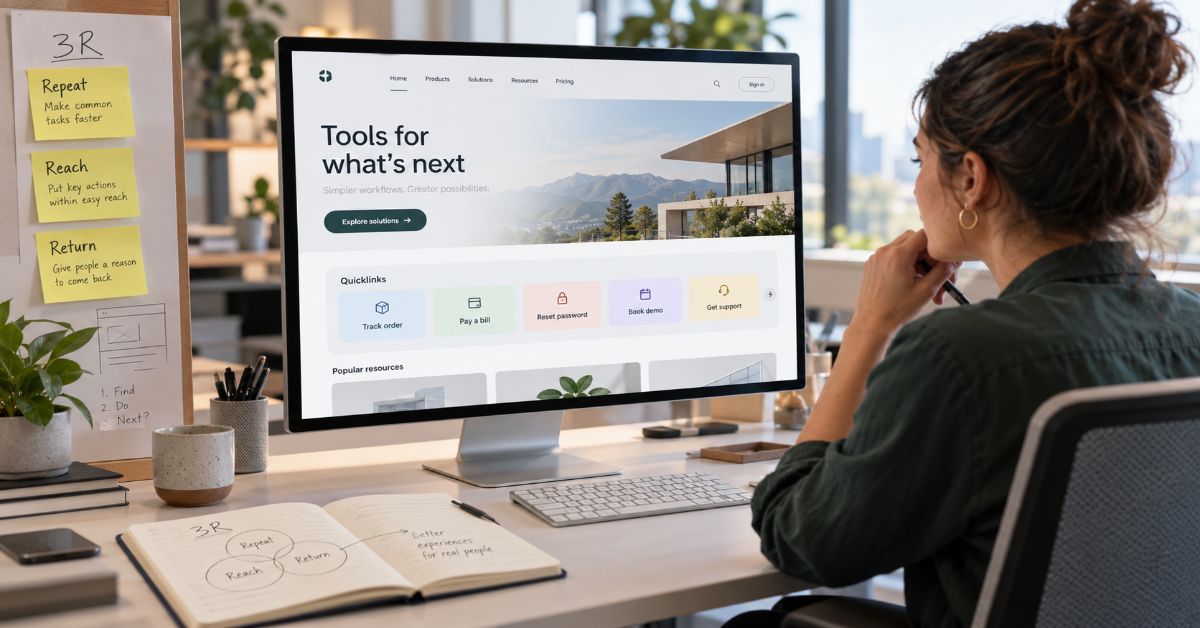
Quicklinks are prominent links that take people directly to important website tasks, but a crowded shortcut panel can make finding a page harder than using the main menu. The real measure of a shortcut is not whether someone clicks it. It is whether they reach the correct destination with less effort and complete what they came to do.
A student checking tuition, a customer tracking an order, and an employee requesting IT help each have a specific goal. “Resources” or “Useful links” says little about any of those goals. Even a prominent block of fourteen links can demand more scanning than a familiar navigation menu. That is why shortcut design starts with recurring tasks, not the pages an organization wants to promote.
A main menu shows the shape of a website. A shortcut should bypass part of that structure for a sufficiently common, costly, or urgent action. Where ordinary navigation and search already work well, adding a shortcut may accomplish nothing.
This guide supplies a practical selection model called the 3R Score, a placement map, a before-and-after redesign, a measurement plan, and a reusable audit worksheet. Its thresholds are editorial starting points to test, not universal UX laws. Most importantly, it separates getting attention from actually helping users succeed.
The difference between a shortcut and another menu
Several clickable elements may look similar but serve different jobs. Confusing those jobs is how a site accumulates duplicated links without improving findability.
| Element | Primary purpose | Best example | When it fails |
| Main navigation | Show information architecture | Products / Solutions | Too many competing categories |
| Quicklink | Skip to an important task | Track order | Repeats a visible menu option without benefit |
| Call to action | Prompt a preferred next step | Start free trial | Pushes conversion where users need support |
| Footer link | Provide secondary reference access | Privacy policy | Hides time-sensitive tasks |
The distinction also matters in search results: Google’s automated sitelinks are generated by its systems from site structure. An on-page shortcut panel does not directly control which sitelinks Google displays.
The 3R Quicklink Score: Repeat, Reach, Return
A shortcut deserves premium screen space when users need the destination, the normal route creates friction, and the label accurately predicts the landing page. Score each candidate on three dimensions, from zero to two. Scores are a prioritization aid; they do not replace observing real users.
| Criterion | 0 points | 1 point | 2 points |
| Repeat | Rare task | Occasional task | Frequently repeated or time-critical task |
| Reach | Already easy to reach | Some friction | Buried, confusing, or several steps away |
| Return | Unclear or misleading label | Mostly understandable | Destination and outcome immediately predictable |
Applying the score without gaming it
A score of 5–6 identifies a strong candidate for testing. A score of 3–4 suggests rewriting the label, improving the underlying menu, or moving the link into a contextual area. A score of 0–2 is normally a poor use of prime shortcut space. Critical safety, legal, emergency, and authentication access should be assessed separately, even when volume is low.
Consider “Reset password.” On a member portal, it may earn Repeat 2, Reach 2, and Return 2, for 6/6. On a tiny brochure website with no user accounts, it would be irrelevant. “About us” might score Repeat 0, Reach 0, Return 2: clear, but not a strong shortcut.
A decision tree for borderline links
First ask whether the task is recurring or critical. Next check whether ordinary navigation already provides a short, reliable route. Finally, ask whether the label tells a new visitor exactly what will happen. Only then test a premium placement. A popular page is not necessarily a valuable shortcut; visits can reflect confusion, not demand.
A placement map based on what the visitor is doing
Placement changes what a link means. A “Log in” control can be universal, while “Download invoice” may only make sense inside a customer account. The strongest page designs match shortcut visibility to user context.
| Location | Typical tasks | Starting range | Risk to check |
| Header | Log in, account, search, support | 3–5 | Crowded mobile viewport |
| Homepage | Apply, check status, request quote | 4–6 | Competes with core proposition |
| Sidebar | Download form, related next step | 2–4 | Too remote on phones |
| End of article | Read related guide, try next workflow | 1–3 | Generic recommendations |
| Footer | Reference, policies, contact | Grouped by topic | Critical task buried below fold |
These ranges are conservative design hypotheses, not a tested industry standard. A service with two primary user goals may need two shortcuts; a complex authenticated portal may support more with clear grouping.
Mobile-first priority: keep the essentials visible
Small screens turn an innocent shortcut row into several lines of competing buttons. Preserve the most valuable account, contact, search, or transaction tasks, then expose secondary actions after the page context appears. Do not conceal essential destinations behind interactions available only on hover.
The 14-to-5 redesign: show the actual editing decision
Imagine a municipal service homepage presenting these fourteen equal-weight links: Home, About, Departments, News, Events, Careers, Contact, FAQ, Forms, Payments, Services, Resources, Locations, and Report an Issue. The panel duplicates site sections and forces residents to infer where tasks are hidden.
A task-focused redesign retains five prominent actions: Pay a bill; Report a problem; Apply for a permit; Check application status; Find collection dates. About, News, Careers, Events, and department information remain accessible through the main navigation or appropriate page sections.
This is an illustrative redesign, not a measured case study. It needs validation against local task data: a city with different service priorities should not copy these five labels blindly.
Labels that reveal the destination before the click
A useful construction pattern is verb + object + optional state: “Download invoice,” “Check application status,” or “Book an appointment.” Noun-led names can also work when users recognize the destination, such as “Employee payroll.” Avoid adding the state word when it makes the label unnaturally long.
Replace “More” with a named destination. Replace “Important links” with task categories or direct actions. “Resources” can still be appropriate as a main-menu category; it is weak as a promised shortcut to one specific outcome.
W3C’s link-purpose guidance stresses that link destinations should be understandable from link text or its programmatically determined context. Ambiguous labels also make screen-reader link lists harder to use.
Build shortcut navigation that works for users and crawlers
Use real links and predictable URLs
Create standard HTML anchors with an href and stable destination, not clickable containers dependent on script handlers. Google Search Central explains that crawlable links help discovery and descriptive anchor text helps users and search engines understand the target.
The site’s existing web development best-practices guide covers related fundamentals such as semantic HTML, discoverability, and reliable interfaces.
Prefer durable destination pages over expiring session URLs. If a user must authenticate first, make the intended task easy to resume afterward. A one-click shortcut that strands users at an access-denied screen is not quick.
Separate shortcut UX from search optimization
Relevant internal links can improve navigation and help search engines discover important pages, but duplicating links purely to influence ranking is not a sound strategy. Google does not prescribe a magic count of internal links. New shortcuts should earn their placement through real task value, not keyword repetition.
For broader context on this publication’s content-quality metrics, see its word-count and SEO-quality guide, which distinguishes basic word counts from intent and useful information.
Avoid assuming on-page shortcut links are the same as Google search sitelinks: those results are automatically selected. Optimize the underlying information architecture rather than trying to force a particular search presentation.
An accessibility check before the site goes live
Test shortcuts as working controls, not decorative cards. W3C’s WCAG material supports meaningful link purpose and a visible keyboard focus indicator; page owners should also check contrast, zoom behavior, touch target spacing, and predictable focus order.
- Tab through every shortcut and confirm visible focus.
- Read links without nearby headings; rewrite unclear labels.
- Test at mobile width, 200% zoom, and with a screen reader.
- Do not identify link destinations through color alone.
- Check that menus and disclosures work with touch and keyboard.
- Explain downloads and unexpected new-tab behavior where that context affects decisions.
A useful implementation companion is the site’s React expense-tracker tutorial, which illustrates how interface controls and navigation decisions need implementation discipline rather than appearance alone.
Measure task completion, not shortcut popularity
Instrument both the shortcut click and the downstream task outcome. A link can generate clicks because its label is irresistible while sending users to a dead end. Conversely, a rarely clicked emergency shortcut can be essential. Set a baseline before launching a revised panel, then compare segments by device, task, and audience.
| Measure | Question answered | Warning sign |
| Shortcut click-through rate | Are people using the placement? | High clicks without completed tasks |
| Task completion rate | Did the shortcut help finish the job? | Users abandon after arrival |
| Median steps or time | Is the route actually shorter? | Same or longer journey |
| Site search terms | Do users still hunt for this task? | Frequent searches despite prominent link |
| Destination errors | Does the shortcut work reliably? | Broken links, permission failures |
| Support contact demand | Did self-service improve? | No decline for repeated help requests |
A 60–90-day retirement rule
Review each noncritical shortcut after an initial 60–90 days with adequate traffic, then keep, relabel, relocate, replace, or retire it. Low usage alone is not sufficient: first check impressions, audience relevance, seasonality, destination health, and high-consequence exceptions. A new applicant service may have little usage until the enrollment season begins.
Assign one person responsibility for the inventory. Log the purpose, destination owner, last verified date, audience, label, score, and review decision. This prevents a temporary campaign shortcut from becoming permanent navigation debt.
An audit worksheet teams can use immediately
Copy the column structure below into a spreadsheet or content-management inventory. The example rows are illustrative, not actual website measurements.
| Candidate | R/R/R | Location | Outcome to observe | Next decision |
| Reset password | 2/2/2 | Account header | Successful reset | Keep and test |
| About us | 0/0/2 | Homepage panel | Qualified visits | Move to menu |
| Submit support ticket | 2/2/2 | Customer portal | Ticket completed | Keep |
| Download old brochure | 0/1/2 | Footer | Relevant downloads | Retire or update |
Worksheet fields: destination URL, task owner, user segment, monthly eligible visits, shortcut clicks, destination completions, failed attempts, score date, next review date, and keep/modify/remove rationale. Keep raw click volume separate from task success to avoid rewarding misleading links.
Practical examples across three types of websites
SaaS: distinguish acquisition from account service
A B2B SaaS homepage may need “View pricing” and “Book demo” for prospects, while signed-in customers need “Open dashboard,” “Get support,” or “Reset password.” A panel that mixes all of these equally can burden both audiences. Account controls belong in persistent navigation; pricing or demo actions may need placement on the public site based on buyer stage.
For a more general discussion of how curated shortcuts can become overloaded, compare the site’s existing quick-links guide.
Local service company: let urgency set the order
A plumbing or repair business may prioritize “Call emergency service,” “Request estimate,” “Check service area,” and “Book visit.” But only show emergency wording if the company genuinely provides that service. A false promise of immediate dispatch creates a worse experience than a normal contact form.
University or intranet: permissions are part of findability
A student portal may surface “Pay tuition” and “Register for classes,” whereas a staff intranet may prioritize “View payroll” and “Submit IT ticket.” Role targeting can reduce noise, but hiding a link is not security: backend permissions still need to protect sensitive destinations.
The Future of Quicklinks in 2027
In 2027, shortcut panels are likely to coexist with personalized portals, AI-assisted search, and task-oriented interfaces. Context-aware systems can suggest relevant destinations based on role or recent activity, but their success will still depend on stable links, meaningful labels, and authorized access. This is a direction to monitor, not a confirmed prediction of universal adoption.
The biggest opportunity is a shift from fixed page lists toward verified task paths. Instead of recommending a generic HR page, a portal might expose the correct expense form for an eligible employee. That only works when identity, permissions, content ownership, and error recovery are reliable. Otherwise personalization merely creates inconsistent experiences across accounts.
A hybrid model is the defensible bet: keep a small, explicit set of crucial shortcuts and supplement it with optional suggestions. Give people a way to find the canonical route when recommendations are wrong. Measure task success and accessibility, not just recommendation engagement.
Key Takeaways
- Treat shortcuts as task accelerators, not a second sitemap.
- Score potential links on task frequency, navigation friction, and destination clarity.
- Protect rare but essential safety, authentication, and regulatory tasks from simplistic click-based removal.
- Write labels that predict a specific destination or action.
- Use native HTML links and test keyboard, touch, screen-reader, and mobile access.
- Evaluate completion and errors over 60–90 days before retiring nonessential items.
Conclusion
The hard part of designing shortcut navigation is not choosing a button shape or deciding whether links belong above the fold. It is accepting that most pages do not deserve privileged placement. A site can have hundreds of useful destinations while needing only a handful of prominent task routes for a particular audience.
The 3R Score creates a transparent starting point for that decision. It asks whether a task repeats, whether finding it is unusually hard, and whether the label makes the result predictable. Placement, accessibility, and measurement then determine whether the design delivers on its promise. None of those steps is a shortcut around user research, and the suggested numeric thresholds should be tested rather than treated as laws.
The most reliable system has a named owner, durable destinations, clear labels, and a scheduled review. When a link stops helping, repair the path or remove the shortcut. When it protects an important but infrequent task, preserve access. Effective navigation is not about showing everything. It is about making the next necessary action easy to recognize and complete.
Frequently Asked Questions
What is a quicklink on a website?
It is a prominent link that takes visitors to an important page or task without requiring them to browse through the usual menu structure. The best examples serve predictable repeat needs.
How is shortcut navigation different from a main menu?
Main menus organize categories of content. Shortcut navigation provides direct routes to particular tasks, such as paying a bill or checking an application.
How many quicklinks should a homepage have?
Four to six is a reasonable initial design experiment for many homepages, not an evidence-backed universal limit. The appropriate number depends on task diversity, audience, screen size, and testing.
Where should website quicklinks be placed?
Use the header for cross-site account needs, the homepage for major entry tasks, contextual page areas for relevant next steps, and the footer for secondary reference links.
Are shortcut links good for SEO?
Relevant crawlable links can help search engines discover pages and understand context, but merely adding extra links does not guarantee better rankings or Google sitelinks.
Should a shortcut open a new tab?
Usually preserve the same tab for normal navigation. Consider a new tab only when there is a clear user benefit, and make unexpected behavior understandable.
How do I measure whether shortcuts work?
Compare eligible impressions, clicks, completed tasks, errors, search demand, and time or steps to success. Review noncritical links after enough traffic accumulates, often in 60–90 days.
Methodology
This editorial analysis draws on Google Search Central’s link guidance and automated sitelinks documentation, W3C accessibility guidance, university navigation recommendations, and a sample of live shortcut-navigation articles. The 3R score, placement ranges, and 60–90-day retirement rule are proposed working methods, not independently validated industry benchmarks. The redesign scenarios are hypothetical, and no controlled usability test was performed for this draft.
The site already contains an article on quick links; publication should account for possible search-intent overlap and keyword cannibalization. The provided target domain’s sitemap endpoint could not be retrieved through the research interface, so internal destinations were checked individually against live pages. A human editor must verify live URLs, final wording, citations, and whether the new article merits a separate page.
AI disclosure for publication after editorial verification: “This article was drafted with AI assistance and reviewed by a human editor before publishing. All data, citations, and claims have been independently verified against primary sources.” This statement must not be represented as completed until that review actually occurs.
References
Google. (n.d.). Link best practices for Google. Google Search Central. Source
Google. (n.d.). Sitelinks. Google Search Central. Source
World Wide Web Consortium. (2026). Understanding SC 2.4.7: Focus visible. WAI. Source
World Wide Web Consortium. (n.d.). Understanding SC 2.4.9: Link purpose (link only). WAI. Source
University of California, Santa Cruz. (2024, July 24). Primary navigation best practices. Source
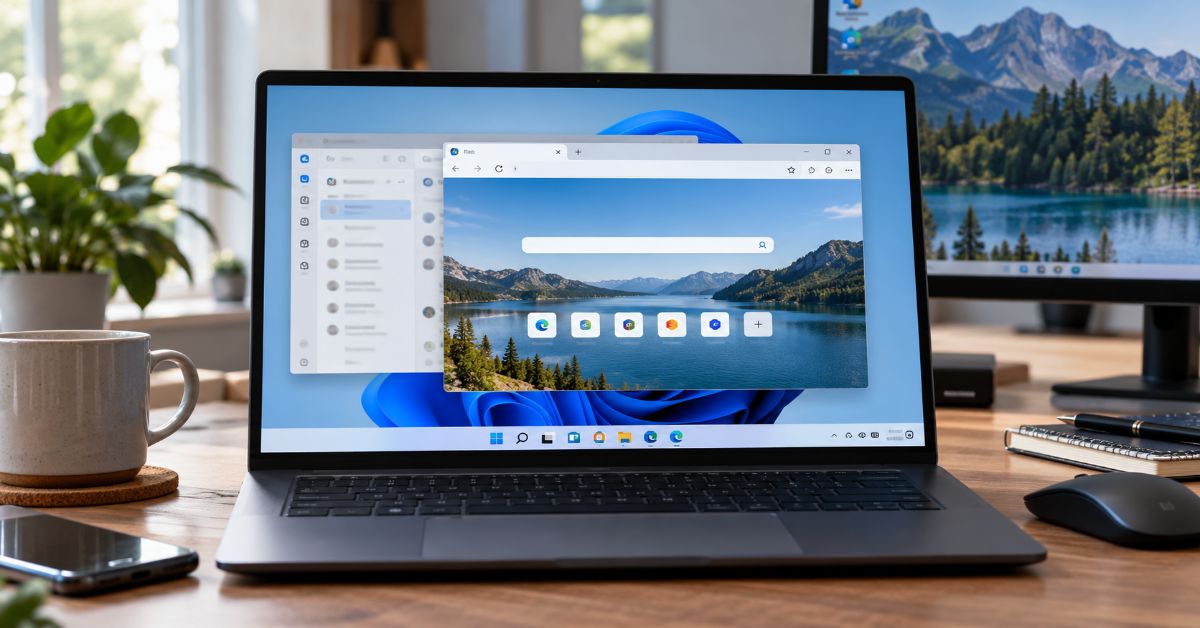
To make Microsoft Edge open in front, first determine whether its window is genuinely behind another app, minimized, or sitting outside the visible display. The frustrating part is that all three can look like the same failure: you launch Edge, nothing seems to happen, and another click may open duplicate windows or tabs.
This is not necessarily a browser crash. A running Edge process can have a window that Windows has not activated. A shortcut can request a minimized launch. A window position remembered from a disconnected monitor can make Edge seem absent. And when a link originates in email, chat, or a document, that originating program may remain in the foreground even though the website opened correctly.
The distinction matters because common advice is too broad. Setting Edge as the default browser does not by itself guarantee that every new or reused window will get keyboard focus. Likewise, turning off Startup boost is a diagnostic test, not an established cure for every foreground problem. Microsoft’s own product documentation describes background processes as a launch-performance feature.
This guide begins with a 30-second recovery method, then uses the exact symptom to decide the next step. It also separates Windows 11 and Windows 10 where their controls differ, covers laptop docking and multiple monitors, and explains why “always on top” is usually the wrong permanent fix. The aim is to recover the missing window without changing unrelated system settings or taking risky registry shortcuts.
First, Identify What Edge Actually Does
Launch Edge once, then check the taskbar and Alt + Tab rather than clicking repeatedly. If its thumbnail exists, the browser probably launched; the question is where the window went and whether it can become active.
| What you see | Most useful first test | What it suggests |
| Edge thumbnail exists but another app stays active | Alt + Tab to Edge | Foreground focus or source-app behavior |
| Edge icon shows a running app but window is minimized | Shift + right-click shortcut; check Run setting | Shortcut or saved window state |
| Edge is in Alt + Tab but cannot be seen | Windows + Shift + Left/Right; then move | Disconnected display or off-screen coordinates |
| Link opens correct page but email stays in front | Compare Start-menu launch with email-link launch | Application-specific activation behavior |
Quick Fix: Bring a Hidden Edge Window Into View
- Press Alt + Tab until the Microsoft Edge thumbnail is selected, then release the keys.
- If the Edge window is active but invisible, press Windows + Up Arrow to maximize it.
- If you have used multiple screens, try Windows + Shift + Left Arrow or Right Arrow to move the active window between monitors.
- For a normal floating window, press Alt + Space. If the window menu offers Move, choose it (or press M), press an arrow key, then move your mouse or use arrows to pull the window into sight; press Enter.
- Once visible, drag Edge to the desired display and close it normally before relaunching.
The Move command may be unavailable while a window is maximized. Restore the window first from the Alt + Space menu, then retry. Keyboard shortcuts also depend on Edge being the active window; Alt + Space applied to the wrong app will move the wrong window.
Microsoft documents Alt + Tab, snapping, and other positioning controls in its Windows multitasking guide.
Fix Edge That Opens Minimized
Check the shortcut rather than the browser homepage
A Windows shortcut can request a normal, maximized, or minimized window at launch. If the problem happens only through one desktop shortcut, right-click that shortcut, select Properties, open the Shortcut tab, and check Run. Set it to Normal window, select Apply, and launch Edge again. Some Start-menu items or taskbar pins do not expose the same shortcut Properties dialog, so test from a desktop shortcut if that menu is missing.
For a pinned taskbar item, create a clean Edge shortcut, confirm it opens normally, then replace the problematic pin. Do not assume every minimized Edge window is caused by this setting: another app can reopen an existing window rather than creating a new instance that follows the shortcut’s Run preference.
Clear a stale window state safely
Close every visible Edge window. Save work first, because ending processes can discard unsaved forms. If Edge still remains running unexpectedly, open Task Manager with Ctrl + Shift + Esc, locate Microsoft Edge and end its browser process group as a diagnostic reset. Relaunch from Start. If this changes the behavior, investigate Startup boost, extensions, or session restoration rather than killing processes after every launch.
Stop Edge From Opening Behind Other Apps
Windows does not promise that every program requesting attention will immediately take the foreground. This helps prevent applications from stealing typing focus. The result can appear broken when an already open window or a newly created Edge window stays behind an email or messaging application. A flashing taskbar icon is a clue that the application wants attention, not proof that it has crashed.
Compare a direct launch with a link-triggered launch
- Close Edge windows, and then launch Edge directly from Start while another program is visible.
- Repeat by opening a new Edge window with Ctrl + N while Edge is focused.
- Click a hyperlink from the program where the problem usually occurs.
- Record whether Edge itself fails to activate, or only the browser window opened by that specific program.
If Start-menu launches behave normally but links from just one application remain behind it, the source application becomes the leading suspect. In a Microsoft Q&A discussion about exactly this problem, a user reported that changing the default browser did not eliminate the issue when the Mail app was the source. That is useful case evidence, not a universal diagnosis.
Test Startup boost and background extensions
In Edge, open Settings and search for Startup boost, or enter edge://settings/system/manageSystem in the address bar. Temporarily disable Startup boost. If available, also turn off the option to keep background extensions and apps running when Edge is closed. Restart Windows, then rerun the same launch test. Re-enable each option separately afterward to learn which one, if any, changes the result.
Microsoft says Startup boost keeps a small set of browser processes active so Edge opens faster. Disabling it may simplify troubleshooting, but a changed result establishes only a local association. It does not establish that Startup boost is the underlying cause across Windows systems.
For the official description of this behavior, see Microsoft’s Startup boost documentation.
When a Link Opens Edge but Does Not Bring It Forward
A link-click failure has two separate parts: which browser handles HTTP or HTTPS, and which application receives focus afterward. They should not be treated as interchangeable. If clicking a URL correctly loads it into Edge, your default browser is probably not the core issue. First compare the same URL opened from two different applications. If it fails only in a particular mail client, document viewer, or collaboration tool, investigate that application’s window behavior and updates.
Check default-browser associations when routing is wrong
On Windows 11, open Settings > Apps > Default apps > Microsoft Edge, then review the Set default action and relevant HTTP, HTTPS, and file associations. On Windows 10, open Settings > Apps > Default apps and inspect the Web browser setting. Change these only if the link opens in the wrong browser or its association is broken. Reboot and test the exact link again.
Some Microsoft 365 applications can use their own browser-link preferences or organization policies. On a managed computer, these settings may be fixed by administrators. Ask the administrator to check both application preferences and Windows policy before attempting to override them.
Use a clean test to separate routing from focus
Open a link once and wait a moment. Use Alt + Tab to see whether Edge has loaded the destination. Repeat from a second app. If the page is already there but not active, the failure is foreground activation; switching the default browser is unlikely to cure that fundamental behavior. If the URL never reaches Edge, prioritize association and application-link handling instead.
For work accounts where authentication changes how links open, the site’s SharePoint sign-in troubleshooting guide explains a separate sign-in-loop problem; do not confuse a login redirect with a hidden Edge window.
Recover Edge After Disconnecting a Second Monitor
Laptop users have a special risk: Windows may preserve a window position relative to an external display. When the monitor is removed, the taskbar can show Edge running while the window is outside the current visible area. Microsoft’s multiple-monitor guidance explicitly explains window minimization and restore behavior on undocking and redocking.
Move the window and check monitor-disconnection controls
- Use Alt + Tab to activate the missing Edge window.
- Try Windows + Shift + Left/Right Arrow to pull the active window onto the remaining screen.
- If needed, use Alt + Space and the Move command, then maximize Edge on the laptop screen.
- On Windows 11, visit Settings > System > Display > Multiple displays. Review Remember window locations based on monitor connection and Minimize windows when a monitor is disconnected.
- Disconnect and reconnect the monitor once to confirm whether the symptom tracks that change.
Settings labels can vary by Windows version, display driver and device capabilities. Windows + P and choosing PC screen only can help verify that the laptop is not still extending its desktop to an unintended display. Do not lower the display resolution or update drivers unless the simpler placement checks fail.
If Windows window placement has become confusing after an update, consult the site’s Windows 11 update troubleshooting guide for the separate task of checking an update’s applicability before changing system software.
Check Startup Pages and Existing Browser Windows
Edge’s Settings > Start, home, and new tabs controls decide which page or session Edge loads at startup. They are not a direct switch for Windows foreground priority. Still, they can explain why an old browser window reappears or why launching Edge seems to open something unrelated to your intended link.
Temporarily choose a new tab page for a clean startup test. If Continue where you left off is enabled, Edge may restore prior pages; that is useful for session continuity but complicates diagnosis. Remove unfamiliar custom startup URLs only after confirming they are unwanted. Do not reset all browsing settings merely to change a startup page.
Escalate Carefully: Extensions, Profile, Repair and Updates
Test extensions and a separate profile
Disable recently added window-management, automation, tab-routing or workspace extensions, then retry the exact launch sequence. If the failure goes away, re-enable them one by one. A separate Edge profile can isolate profile configuration from machine-wide behavior, but a new profile does not eliminate Windows display settings or an application that persistently takes focus.
Update or repair only after documenting the symptom
Check Settings > Help and feedback > About Microsoft Edge for updates. If Edge is otherwise behaving badly, Windows 11 offers Settings > Apps > Installed apps > Microsoft Edge > Modify > Repair on eligible installations; a managed device may hide Modify. The Windows 10 path is generally Settings > Apps > Apps & features, although menu labels differ. Microsoft states a repair should not affect browser data and settings, but protecting important work before system changes is still sensible.
If multiple programs refuse to come to the foreground, shift the investigation toward Windows window management, full-screen overlays, virtual desktops, third-party “always on top” utilities, or user-profile-specific settings. Test with such utilities temporarily disabled. Avoid speculative registry edits: foreground-lock system values are not a reliable substitute for finding the program interfering with activation.
When several Windows functions fail after a major update, the site’s DISM component-store repair guide explains when deeper OS repair is relevant; a single hidden Edge window is not enough evidence to run it.
What Not to Do: Three Misleading Fixes
| Popular suggestion | Why it can mislead | Better first move |
| Make Edge the default browser | Controls routing, not a guarantee of foreground activation | Check whether the correct page already opened |
| Switch on Focus / Do Not Disturb | Notification behavior is not a general browser-window focus switch | Compare direct launch and link launch |
| Force Always on Top | Pins a window above others and changes ordinary multitasking | Recover normal window position and identify the source app |
| Edit foreground registry values | Can create side effects without identifying the cause | Use reversible process and window tests |
The distinction between alerts and window activation matters. Windows Focus and Do Not Disturb features concern notifications and interruptions; they are not documented as a universal fix for Edge launch focus. Likewise, PowerToys Always On Top can deliberately pin a window, but that is a different user experience from having a newly opened browser appear in front once.
Windows 11 Versus Windows 10: Practical Differences
| Task | Windows 11 | Windows 10 |
| Default browser | Settings > Apps > Default apps > Microsoft Edge | Settings > Apps > Default apps > Web browser |
| Display setup | Settings > System > Display > Multiple displays | Settings > System > Display |
| Edge repair | Settings > Apps > Installed apps > Edge > Modify | Settings > Apps > Apps & features > Edge > Modify (if available) |
| Window recovery | Alt + Tab, Alt + Space, Win + Arrow | Alt + Tab, Alt + Space, Win + Arrow |
Windows 10 support ended on October 14, 2025 for most standard consumer editions. In 2026, the same basic window shortcuts still exist, but long-term browser and operating-system maintenance decisions should account for the device’s support status. The window-focus steps do not make an unsupported operating system secure.
For readers who need to identify the right Microsoft servicing instructions, the site’s guide to finding current Windows Update documentation shows why the Windows version and document date both matter.
The Future of Edge Window Activation in 2027
Edge and Windows are likely to keep optimizing launch performance, restoring sessions, and managing multiple screens, but there is no verified public Microsoft commitment that every browser window will automatically steal focus in 2027. Such a promise would conflict with the longstanding user-experience goal of preventing unexpected applications from interrupting active work.
A more realistic direction is better separation between background process readiness and foreground presentation. Startup boost already shows the first half of this pattern: Edge can be ready to launch while its browser processes exist in the background. That improves responsiveness but says nothing by itself about whether a window should take focus from another app.
For people who move between a docked desk and a laptop, monitor-aware window restoration is at least as important as browser startup speed. Microsoft already documents remembering window locations and minimizing windows after monitor disconnection. If the platform improves this workflow, fewer “Edge did not open” reports may actually be hidden-window reports. That remains an expectation, not a published product roadmap.
The practical 2027 lesson is durable regardless of version: diagnose the window layer, the originating application, and the browser layer separately. Treat every update as an opportunity to retest a known issue, not as proof that an unexplained focus problem has been fixed.
Key Takeaways
- Alt + Tab and keyboard-based window positioning are the safest first fixes because they do not change browser data.
- A correct URL loaded behind email indicates a focus problem, not necessarily a default-browser problem.
- A desktop shortcut set to Run: Minimized can be fixed without reinstalling Edge.
- Monitor docking and undocking are strong diagnostic clues when Edge is visible only in taskbar previews.
- Startup boost is an optional troubleshooting variable, not a proven universal cause.
- Use updates, profile isolation and repair after narrower tests—not before.
Conclusion
The most effective way to make Microsoft Edge open in front is not to search for a single hidden Edge setting. It is to identify whether Windows has activated the wrong window, whether Edge was launched minimized, whether a remembered window position lies outside the screen, or whether another application is opening links without yielding the foreground.
Begin by selecting Edge with Alt + Tab, maximizing it, or moving it back onto the visible display. That solves many apparent failures without modifying anything permanent. If the problem repeats, compare a direct Edge launch with links opened from the application that triggers it. The difference tells you which layer deserves attention next.
Only then check shortcut properties, Startup boost, link associations, monitor-disconnection settings and extensions. Reserve repair for persistent failures. The important outcome is not simply getting Edge visible once; it is learning enough about the cause that the next browser launch behaves predictably without compromising normal multitasking.
Frequently Asked Questions
Why does Microsoft Edge open behind other windows?
A running browser window may not be given foreground focus when another application launches it. Check whether this happens on direct Start-menu launch or only after clicking a link in email or chat; the distinction helps identify the responsible app.
How do I force Microsoft Edge to open maximized?
For a desktop shortcut, right-click it, choose Properties and select Maximized in the Run drop-down if available. That sets a shortcut launch preference, not a universal foreground guarantee. You can also select an active Edge window and press Windows + Up Arrow.
Why does the Edge window open off-screen in Windows 11?
This often follows a display-layout change, especially after unplugging an external monitor. Select Edge using Alt + Tab, try Windows + Shift + an arrow key, or use Alt + Space > Move to recover its position.
Why does Edge not come to front when I click a link?
The calling application may retain focus even after Windows routes the URL correctly. Compare the same link from different apps. If Edge loads the correct page in the background, changing the default browser alone may not help.
How do I stop Edge from opening minimized?
Check the launching shortcut’s Properties > Shortcut > Run setting, then test a fresh shortcut and a direct Start-menu launch. Close existing Edge windows before testing so an old minimized session does not distort the result.
Does Startup boost cause Edge to open in the background?
Startup boost deliberately keeps core Edge processes in the background to improve launch time. Microsoft does not say it universally causes an Edge window to open behind other applications. Disable it temporarily only to test whether behavior changes on your device.
Can I make Edge always stay on top?
Utilities such as PowerToys can pin a window above others, but this is different from fixing the initial activation of a browser. Use pinning when persistent visibility is the goal; otherwise fix the window position or the app that triggers the launch.
Methodology
This guide compares Microsoft’s support documentation on window switching, monitor behavior, Startup boost and Edge repair with Microsoft Q&A reports describing link-triggered foreground failures. Community reports illustrate possible symptoms; they do not prove a single cause for all devices. No controlled hands-on testing was supplied, so the recommended sequence prioritizes reversible steps and explicitly labels diagnostic hypotheses. The article should be reviewed on actual Windows 11 and Windows 10 builds before publication.
References
Microsoft. (n.d.). Get help with startup boost. Microsoft Support. https://support.microsoft.com/en-us/edge/get-help-with-startup-boost
Microsoft. (n.d.). How to use multiple monitors in Windows. Microsoft Support. https://support.microsoft.com/en-us/windows/hardware/display-graphics/how-to-use-multiple-monitors-in-windows
Microsoft. (n.d.). What to do if Microsoft Edge isn’t working. Microsoft Support. https://support.microsoft.com/en-us/edge/what-to-do-if-microsoft-edge-isn-t-working
Microsoft. (n.d.). How to multitask in Windows. Microsoft Support. https://support.microsoft.com/en-gb/windows/how-to-multitask-in-windows-b4fa0333-98f8-ef43-e25c-06d4fb1d6960
Microsoft Q&A. (2020, December 8). How do I get Edge to open in front? https://learn.microsoft.com/en-us/answers/questions/4228407/how-do-it-get-edge-to-open-in-front
-
 Technology2 months ago
Hitomi la in 2026: Domain Status, Safety and Risks
-

 Technology1 month ago
Scrolller in 2026: How It Works, Risks and Alternatives
-

 General2 months ago
Voozon.com: What It Is and How the Platform Works
-

 Technology2 months ago
ThomsonKids.com: Website Guide, Topics & Trust Check
-

 Business2 months ago
incabizgrowth.com Review: Content, Trust & Use
-
 Technology1 month ago
Filetype:pdf Windows Update: Find Better Microsoft Guides
-

 General1 month ago
Elizabeth Fraley Kinder Ready Court Case: What the Public Record Supports
-

 Technology2 months ago
thesindi com Review: What TheSindi.com Really Offers